
How to Fix Packet Loss in Gaming
Measure Your True Jitter Score
We just launched MyJitter.com, a specialized tool built exclusively for competitive gamers to analyze network stability and rank their connection.
What Exactly Is Packet Loss?
Every action you take in an online game, every mouse movement, button press, and character position update, gets packaged into small chunks of data called "packets." These packets travel from your computer through your local network, through your ISP, across the internet backbone, and into the game server. The server processes them and sends response packets back to you the same way.
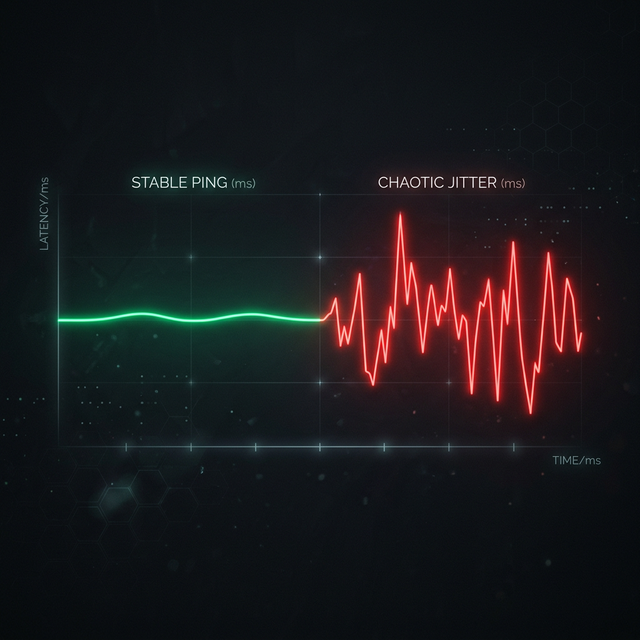
Packet loss occurs when some of these packets fail to reach their destination. They get dropped somewhere along the path. Unlike high ping (where all packets arrive, just slowly) or jitter (where packets arrive at inconsistent intervals), packet loss means the data simply vanishes. The game server never receives your input, or you never receive the server's update about what happened. The result is the game's netcode trying to compensate for missing information, which produces the classic symptoms of rubberbanding, teleporting, and "hit registration" failures.
Packet Delivery: 0% vs 5% Loss
How Much Packet Loss Is Acceptable?
| Packet Loss Rate | Impact on Gaming | Impact on Video Calls |
|---|---|---|
| 0% | Perfect. No issues. | Crystal clear. |
| 0.1 to 1% | Occasional micro-stutters. Barely perceptible in most games. | Minor audio glitches. |
| 1 to 2.5% | Noticeable rubberbanding. Hit registration becomes unreliable. | Choppy video, clipped audio. |
| 2.5 to 5% | Severe teleporting. Game becomes frustrating and borderline unplayable. | Frequent freezes, broken sentences. |
| 5%+ | Unplayable. Disconnections likely. | Call quality is unusable. |
How to Diagnose Packet Loss
Use the ping command with count. Open Command Prompt (Windows) or Terminal (Mac/Linux) and run: ping -n 100 8.8.8.8 (Windows) or ping -c 100 8.8.8.8 (Mac/Linux). After 100 packets, the summary will show you the exact percentage of packets lost. Any number above 0% indicates a problem.
Run a traceroute. The command tracert 8.8.8.8 (Windows) or traceroute 8.8.8.8 (Mac/Linux) shows every hop your packets take between you and the server. If a specific hop shows very high latency or timeouts (*), the problem is at that particular point in the network path.
Monitor in real time. Our speed monitoring tool continuously tracks your connection quality, making it easy to spot patterns. Does packet loss spike at certain times? Does it correlate with WiFi vs Ethernet? Continuous monitoring reveals patterns that single tests miss.
10 Ways to Fix Packet Loss
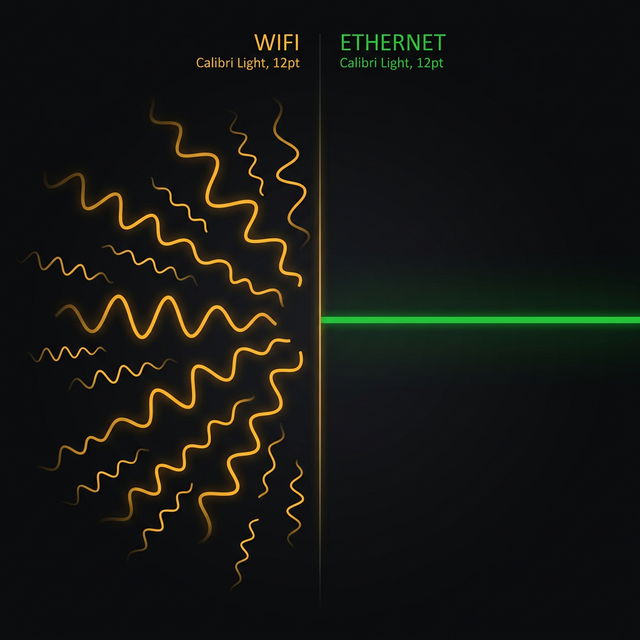
1. Switch to Ethernet. WiFi is the number one cause of packet loss in gaming. Radio interference, signal degradation through walls, and channel congestion all cause your WiFi adapter to drop or retry packets. A wired Ethernet connection eliminates all of this instantly.
2. Restart your router and modem. A simple power cycle clears the device's memory, reloads routing tables, and resolves temporary firmware glitches that can cause packet handling errors. Unplug both devices for 30 seconds, then plug in the modem first, wait for it to fully connect, then power on the router.
3. Check your cables. A damaged, loose, or poorly crimped Ethernet cable can cause intermittent packet loss. Try swapping the cable. Also check the coaxial cable connecting your modem. Corroded connectors or kinks in the cable are common culprits.
4. Close bandwidth-heavy background apps. Cloud sync services, Windows Update, Steam auto-updates, and browser tabs with auto-playing video all compete for bandwidth and can cause your router's buffer to overflow, dropping packets. Check Task Manager's Network column to identify hidden bandwidth consumers.
5. Update your network adapter drivers. Outdated or buggy network drivers can introduce packet handling errors at the hardware level. Visit your motherboard or network adapter manufacturer's website and download the latest driver version.
6. Reduce WiFi interference (if stuck on WiFi). Switch to the 5 GHz band for less congestion. Move your router to a central, elevated location away from microwaves and Bluetooth devices. Use a WiFi analyzer app to find the least crowded channel.
7. Disable VPN during gaming. While VPNs protect privacy, they add an extra network hop and encryption overhead. Some VPN servers are overloaded and drop packets under load. Unless you specifically need a gaming VPN for routing optimization, disable it while playing.
8. Update your router firmware. Router manufacturers regularly fix bugs in how their devices handle packet routing and queueing. Log into your router's admin panel and check for firmware updates.
9. Try a different DNS server. While DNS does not directly cause packet loss in active game connections, some DNS servers cause slow or failed initial connection handshakes with game servers, which can manifest as timeout errors and apparent packet loss during the connection phase.
10. Contact your ISP. If you have tried all the above and packet loss persists on a wired connection, the problem is likely in your ISP's infrastructure. A damaged line, overloaded node, or faulty CMTS (Cable Modem Termination System) can cause persistent packet loss that only your ISP can fix. Request a line quality test and a technician visit if needed.
"Packet loss is worse than high ping. With high ping, your actions are delayed but still register. With packet loss, your actions simply disappear. The server never knew you fired."
Frequently Asked Questions
Can a game cause packet loss, or is it always my network?
While most packet loss originates from your network or ISP, game servers can also be the cause. If the game server is overloaded, it may fail to process incoming packets fast enough and drop them. You can distinguish this by testing your connection to other servers. If only one specific game server has high packet loss but everything else is fine, the problem is on the server's end.
Is some packet loss normal?
On a healthy connection, packet loss should be 0%. Unlike latency (where some amount is unavoidable due to physics), packet loss is always a sign that something is wrong somewhere in the network path. Even 0.5% packet loss, while technically minor, is enough to cause noticeable issues in competitive online gaming.
Does using TCP instead of UDP help with packet loss?
TCP automatically retransmits lost packets, but this introduces additional latency because the game must wait for the retransmission. Most competitive games use UDP precisely because they prefer to skip lost packets and keep the game flowing in real time rather than pausing to wait for retransmissions. Reducing packet loss at the network level is always better than relying on protocol-level recovery.
Related Tools
Live Speed Test
Measure your exact connection speed in Mbps right now.
Wi-Fi Speed Test
See how much speed your wireless connection is losing.
Continue Reading
What is Jitter? A Simple Guide to Network Stability

How to Reduce Ping: 12 Proven Methods
WiFi vs Ethernet: Real Speed Comparison
Is your connection unstable?
Don't just guess. Use our real-time monitor to see exactly what's happening with your download, upload, and ping variance right now.
START GAMING PING TEST