
How to Reduce Ping: 12 Proven Methods
Measure Your True Jitter Score
We just launched MyJitter.com, a specialized tool built exclusively for competitive gamers to analyze network stability and rank their connection.
Understanding What Ping Actually Measures
Before we fix it, let us understand it. When you click "shoot" in a game, your computer sends a tiny data packet to the game server. That packet must travel through your local network, through your ISP's infrastructure, across backbone fiber cables, and finally into the game server's data center. The server processes it, then sends a response back along the same path. The total time for that entire round trip is your ping.
Every hop along that path adds a few milliseconds. Your local router adds 1 to 5ms. Your ISP's regional network adds 5 to 20ms. The backbone internet cables add latency proportional to the physical distance. And the server itself takes 1 to 5ms to process the request. All of these add up to your total ping number.
The Anatomy of a Ping Request
What Counts as Good Ping?
| Ping Range | Rating | Experience |
|---|---|---|
| 0 to 20ms | Excellent | Feels instant. Ideal for competitive FPS games and live trading. |
| 20 to 50ms | Great | Smooth gameplay and fluid video calls. Most players cannot detect this delay. |
| 50 to 100ms | Acceptable | Noticeable in fast games, but perfectly fine for casual play and browsing. |
| 100ms+ | Poor | Visible lag in all real-time applications. Actions feel sluggish and delayed. |
Level 1: Hardware Fixes (Biggest Impact)
1. Use an Ethernet Cable
This is the single most effective way to lower your ping, and it is the first thing every network engineer will tell you. Wi-Fi signals are radio waves, and they are subject to interference from walls, furniture, microwaves, Bluetooth devices, baby monitors, and every single one of your neighbor's routers broadcasting on the same frequency band. A standard Cat6 Ethernet cable costs around $10 and eliminates all of this noise instantly. Most users see their ping drop by 5 to 15ms and their jitter nearly disappear just by plugging in a cable.
2. Upgrade Your Router
If your router is more than 4 to 5 years old, it may lack the processing power to efficiently handle modern network traffic. Older routers have slower processors, less RAM, and outdated firmware that can introduce delays when routing packets. Modern gaming-optimized routers from brands like ASUS, Netgear, or TP-Link feature dedicated hardware for traffic prioritization, Wi-Fi 6E support with less congestion, and built-in QoS profiles specifically designed to minimize latency for gaming and video calls.
3. Move Closer to Your Router (if using Wi-Fi)
If running an Ethernet cable is genuinely impossible, at least minimize the distance and obstacles between your device and the router. Every wall, floor, or large metal object (like a refrigerator) between you and the access point degrades the signal strength, forcing your device to negotiate a slower, more error-prone connection. Being in the same room as your router can cut your Wi-Fi latency contribution in half.
Level 2: Software Configurations
4. Close Background Applications
Open your Task Manager (Ctrl+Shift+Esc on Windows) and look at the "Network" column. You might be shocked to discover that OneDrive, Google Drive, Steam, Discord, Windows Update, or your antivirus is quietly uploading or downloading data in the background. When your internet connection becomes saturated with background traffic, a phenomenon called "bufferbloat" occurs. Packets queue up in your router's buffer, and your gaming packets get stuck behind a mountain of cloud sync data, adding hundreds of milliseconds to your ping.
5. Change Your DNS Server
While DNS does not directly affect the continuous stream of packets in an active game session, a slow DNS server can add significant delays when your computer first connects to the game server or loads new assets. Your ISP's default DNS servers are often overloaded and slow. Switching to Cloudflare (1.1.1.1) or Google Public DNS (8.8.8.8) is free and usually provides noticeably faster name resolution. See our guide on the best DNS servers for more details.
6. Select the Geographically Closest Game Server
You cannot cheat physics. Light travels through fiber optic cables at roughly 200,000 kilometers per second. A packet traveling from New York to a server in London must traverse approximately 5,500 kilometers of undersea cable, which takes a minimum of 27ms in each direction. That is a baseline 54ms ping floor that no optimization can reduce. Always select the server region geographically closest to your physical location. If you are in Karachi, connect to Singapore or Mumbai servers, not European ones.
"Distance is the enemy of latency. You can optimize everything on your end, but you cannot make light travel faster through a fiber optic cable stretching across an ocean."
Level 3: Advanced Network Fixes
7. Enable QoS (Quality of Service). Log into your router's admin panel (usually 192.168.1.1 or 192.168.0.1 in your browser) and look for QoS or Traffic Prioritization settings. This feature instructs your router to always give priority to gaming or video call packets over bulk downloads. When your sister starts a massive Netflix download, your gaming packets will still jump to the front of the queue.
8. Use a Gaming VPN. This sounds counterintuitive because VPNs usually add latency. However, if your ISP has poor routing tables, your packets might be taking a wildly inefficient path to the game server. A specialized gaming VPN like ExitLag or WTFast can force your traffic down a more direct, optimized route, sometimes cutting your ping by 20 to 40ms. Test it both ways to see if it helps for your specific server.
9. Update Your Network Drivers. Outdated network adapter drivers on your motherboard can introduce strange bugs, increased latency, and packet handling inefficiencies. Visit your motherboard manufacturer's website (ASUS, MSI, Gigabyte) and download the latest LAN and Wi-Fi drivers. On Windows, you can also try right-clicking your network adapter in Device Manager and selecting "Update driver."
10. Limit Devices on Your Network. Every connected device adds a small amount of overhead to your router's processing load. Smart home devices like cameras, thermostats, and smart speakers constantly ping their cloud servers. If you have 30+ devices connected to a consumer-grade router, the sheer management overhead can add latency. Consider setting up a separate network (most routers support a guest network) for IoT devices.
11. Scan for Malware and Cryptominers. Malicious software like cryptominers and botnet trojans secretly use your internet connection and CPU in the background. They send and receive large amounts of data without your knowledge, saturating your bandwidth and adding latency. Run a full scan with Windows Defender or Malwarebytes if you notice unexplained ping spikes.
12. Contact Your ISP. If you have consistently high ping combined with random packet loss, and none of the above fixes help, the problem might be physical. A damaged coaxial cable with water intrusion, a faulty splitter at the utility pole, or an overloaded neighborhood node can all cause persistent latency issues. Call your ISP and request a line quality test. They can send a technician to inspect the physical infrastructure between your home and their network.
Frequently Asked Questions
Does a faster internet plan lower my ping?
Not directly. Upgrading from 100 Mbps to 1 Gbps will not change your ping to a game server. Ping is determined by distance and routing, not bandwidth. However, a faster plan prevents bufferbloat when multiple devices are active, which indirectly stabilizes your ping during peak household usage.
Is 0ms ping possible?
Only if the server is running on your own machine (localhost). Any remote connection requires time for light to physically travel through cables and for routers to process packets. The absolute minimum ping to a server in the same city is usually 1 to 5ms.
Why is my ping fine during the day but terrible at night?
This is almost always network congestion. Between 7 PM and 11 PM, everyone in your neighborhood is streaming, gaming, and downloading simultaneously. Cable internet (DOCSIS) connections share bandwidth at the local node level, so peak-hour congestion is a common and frustrating reality. Fiber connections are less susceptible to this issue.
Related Tools
Live Speed Test
Measure your exact connection speed in Mbps right now.
Wi-Fi Speed Test
See how much speed your wireless connection is losing.
Continue Reading

What Is Latency? Everything You Need to Know
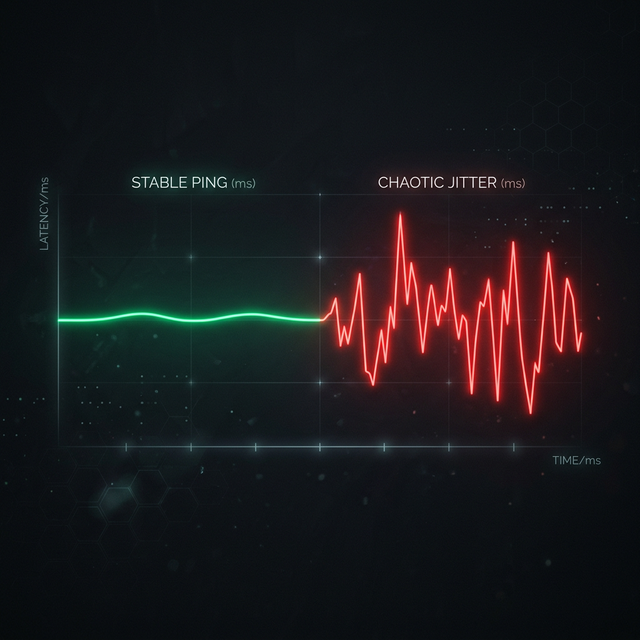
What is Jitter? A Simple Guide to Network Stability

How Much Internet Speed Do I Need for Gaming?
Is your connection unstable?
Don't just guess. Use our real-time monitor to see exactly what's happening with your download, upload, and ping variance right now.
START GAMING PING TEST