
WiFi Speed Test
Is your WiFi actually delivering what your ISP plan promises? Most wireless connections lose 30–60% of their rated speed due to interference, distance, and congestion. Our continuous monitor reveals exactly how your WiFi performs over time.
Ready to test your Wi-Fi connection?
Our continuous real-time monitor runs directly in your browser. Uncover hidden latency drops and find the optimal spot for your router.
Launch Real-Time Speed TestThe WiFi Speed Reality Check
Your ISP sells you a plan rated in Megabits per second. But the speed your device actually receives depends on the weakest link in the chain — and for most households, that weakest link is the WiFi connection between your router and your device.
Think of it this way: your ISP delivers water to your house through a large pipe (your internet plan). But inside your house, you're using a garden hose (WiFi) to distribute it. No matter how large the incoming pipe is, the garden hose limits what each device actually receives.
This test helps you see your actual WiFi throughput in real time. Run it from different rooms to map your home's wireless performance. If the numbers are significantly below your plan, the problem is your WiFi setup, not your ISP.
WiFi vs. Ethernet: The Real Difference
WiFi (Wireless)
- ✕ Half-duplex (can't send and receive simultaneously)
- ✕ Subject to interference from walls, appliances, neighbors
- ✕ Speed drops with distance from router
- ✕ Shared airtime between all connected devices
- ✓ Convenient, no cables needed
Ethernet (Wired)
- ✓ Full-duplex (simultaneous send and receive)
- ✓ Zero wireless interference
- ✓ Consistent speed regardless of distance
- ✓ Dedicated bandwidth per device
- ✕ Requires physical cable routing
For the definitive comparison, read our detailed WiFi vs Ethernet analysis with real-world test data.
5 Ways to Optimize Your WiFi Speed
Choose the Right WiFi Channel
In crowded apartments, your neighbors' routers broadcast on the same channels as yours, causing interference. Use a WiFi analyzer app to identify congested channels and switch to a cleaner one. Read our guide on the best WiFi channels for 5GHz and 6GHz.
Position Your Router Centrally
WiFi signals radiate outward in all directions. Placing your router in a corner wastes half the signal outside your home. Move it to a central, elevated location for maximum coverage across all rooms.
Use 5GHz for Speed-Critical Devices
The 5GHz band offers significantly higher throughput than 2.4GHz, though with shorter range. Connect your gaming PC, work laptop, and streaming TV to 5GHz. Leave IoT devices and smart home gadgets on 2.4GHz.
Update Router Firmware
Router manufacturers regularly release firmware updates that fix bugs, patch security vulnerabilities, and improve WiFi performance. Check your router's admin panel monthly, or enable automatic updates if available.
Consider a Mesh WiFi System
For homes over 1,500 sq ft, a single router often cannot provide full coverage. Mesh systems use multiple access points to blanket your home with consistent signal. They are far superior to range extenders, which halve your bandwidth.
WiFi Speed Test FAQ
Why is my WiFi slower than my internet plan?
Is WiFi 6 (802.11ax) significantly better for speed?
What is the best location for my WiFi router?
Should I use 2.4GHz or 5GHz?
Does the number of devices affect WiFi speed?
Continue Reading

How to Reduce Ping: 12 Proven Methods
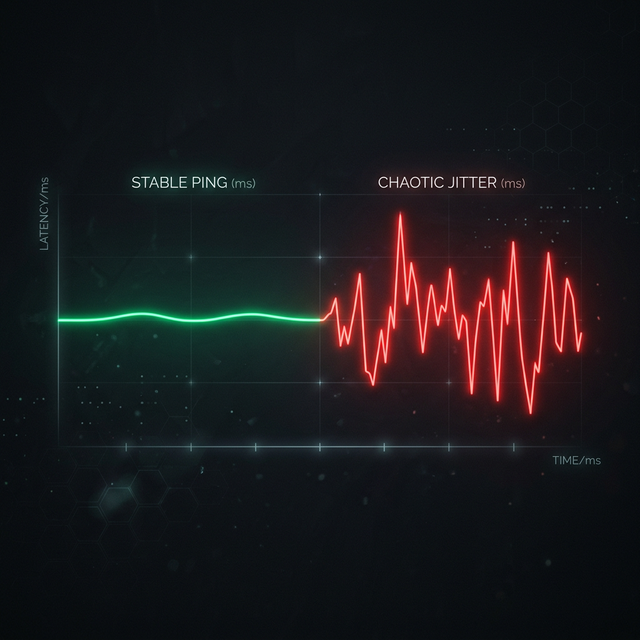
What is Jitter? A Simple Guide to Network Stability

How to Fix Packet Loss in Gaming
Is your connection unstable?
Don't just guess. Use our real-time monitor to see exactly what's happening with your download, upload, and ping variance right now.
START REAL-TIME TEST